
Table of Contents
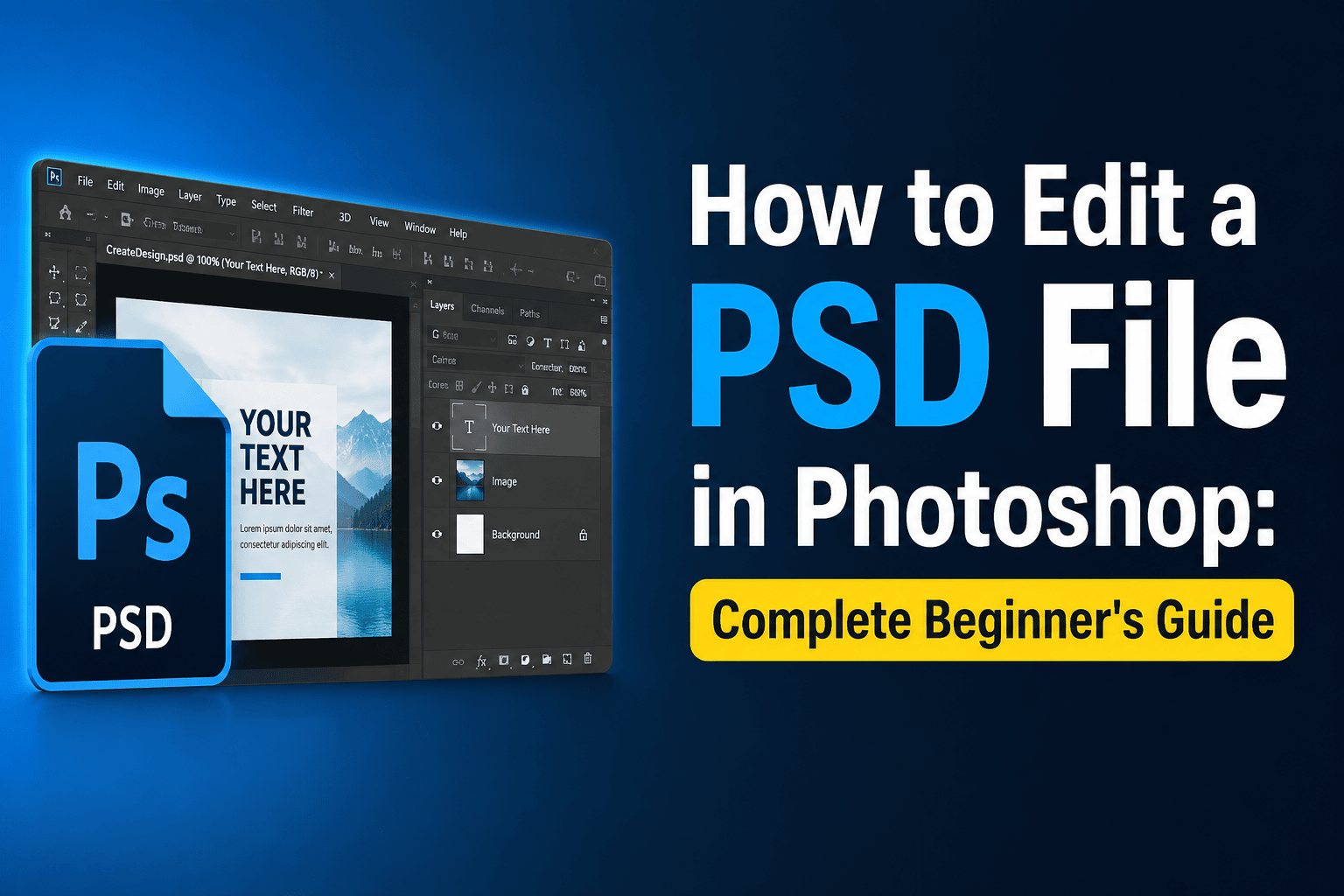
A PSD file is the standard editable file format used by Adobe Photoshop. Unlike JPG or PNG files, a PSD can contain multiple layers, text, images, shapes, effects, masks, and other design elements that can be edited separately.
Whether you've downloaded a poster, flyer, banner, social media template, logo design, photo manipulation, thumbnail, or any other PSD file, you can customize it in Photoshop according to your needs.
In this guide, you'll learn how to open, edit, customize, save, and export any PSD file in Photoshop.
.jpg)
What Is a PSD File?
PSD stands for Photoshop Document. It is Adobe Photoshop's native file format and is designed to preserve the editable elements of a design.
A PSD file may contain:
- Text layers
- Image layers
- Shapes
- Smart Objects
- Layer masks
- Adjustment layers
- Effects and filters
- Backgrounds
- Graphics and illustrations
Because these elements are stored separately, you can modify individual parts of a design without rebuilding the entire project.
.jpg)
How to Open a PSD File in Photoshop
Before editing a PSD, you need to open it in Adobe Photoshop.
Steps:
- Open Adobe Photoshop.
- Click File in the top menu.
- Select Open.
- Browse to your PSD file.
- Select the file and click Open.
You can also drag the PSD file directly into Photoshop.
Once opened, you'll see the design on the canvas and its editable layers in the Layers panel.
.jpg)
Understanding the Photoshop Layers Panel
The Layers panel is one of the most important parts of an editable PSD.
A professionally created PSD may contain dozens or even hundreds of layers. Each layer can represent a different part of the design. For example:
- Background
- Main photo
- Logo
- Heading
- Subtitle
- Icons
- Decorative elements
- Shadows
- Color effects
Show or Hide a Layer
Click the eye icon next to a layer to hide or show it. This is useful when you want to understand which part of the design belongs to a particular layer.
Rename a Layer
Double-click the layer name and enter a new name. Keeping layers organized makes larger PSD projects easier to edit.
.jpg)
How to Edit Text in a PSD
If the text is still an editable text layer, changing it is very easy.
Steps:
- Select the Type Tool (T).
- Click the text you want to change.
- Select the existing text.
- Enter your new text.
- Adjust the font, size, color, or alignment if necessary.
You can use this method to change headings, names, prices, dates, contact information, offers, captions, and website addresses.
What If the Text Cannot Be Edited?
Sometimes text has been converted into a shape or rasterized layer. In that case, you won't be able to edit it like a normal text layer. You may need to hide the original layer and create a new text layer using the Type Tool.
.jpg)
How to Replace an Image in a PSD
Many PSD templates use Smart Objects to make image replacement easier.
If the Image Is a Smart Object
- Find the image layer in the Layers panel.
- Look for the Smart Object icon on the layer thumbnail.
- Double-click the Smart Object thumbnail.
- A new document will open.
- Replace the existing image with your own photo.
- Press Ctrl + S on Windows or Command + S on Mac.
- Return to the original PSD.
Your new image should automatically appear in the main design. This method is commonly used in mockups, posters, product templates, social media designs, and photo effects.
How to Add Your Own Image Manually
If the PSD doesn't use a Smart Object, go to File → Place Embedded. Select your image, resize it as needed, position it on the canvas, and press Enter. You can then use Photoshop's clipping masks or layer masks to fit the image into the design.
.jpg)
How to Change Colors in a PSD
Changing colors is useful when you want to match a design with your brand or personal style.
Depending on how the PSD was created, you can use Color Overlay, Solid Color layers, Adjustment layers, Shape fill colors, Hue/Saturation, or Color Balance to customize the background, buttons, shapes, text, or other design elements.
How to Add or Replace a Logo
Go to File → Place Embedded, select your logo, resize it while maintaining its proportions, position it on the design, and press Enter. A PNG logo with a transparent background is usually a good choice.
.jpg)
How to Resize or Move Elements
To move an element, select the appropriate layer and choose the Move Tool (V). To resize an element, use Free Transform via Edit → Free Transform or press Ctrl + T (Windows) / Command + T (Mac).
How to Change the Background
If the PSD has a separate background layer, you can simply hide it and add a solid color, gradient, photo, texture, pattern, or AI-generated background.
How to Edit Smart Objects & Layer Masks
Double-click Smart Object thumbnails to edit mockups and templates. Layer masks allow non-destructive hiding or revealing of content, marked by the black-and-white thumbnail next to a layer.
How to Edit PSD Files With Missing Fonts
If Photoshop displays a missing font warning, either download and install the original font or replace it with a similar typeface.
.jpg)
How to Save and Export an Edited PSD
Save your editable version via File → Save As (Photoshop *.PSD). To share online, export as JPG or PNG via File → Export → Export As.
Common Problems & Tips for Editing PSD Files
- Always keep a backup copy of the original PSD.
- Don't flatten layers unnecessarily.
- Rename important layers to stay organized.
- Use high-resolution replacement images.
- Save your work regularly (Ctrl + S / Command + S).
Frequently Asked Questions (FAQs)
Can I edit any PSD file in Photoshop?
You can open most PSD files in Photoshop, but the level of editability depends on how the file was created. A well-organized PSD with separate layers is much easier to customize.
Can I edit text in every PSD?
No. Text can only be directly edited when it remains an editable text layer. If it has been rasterized or converted to another type of layer, you'll need to recreate the text.
Can I replace photos in a PSD?
Yes. You can replace photos manually or through Smart Objects when the template supports them.
Do I need Photoshop to edit a PSD?
Photoshop provides the best compatibility because PSD is its native format. Some other image-editing applications can open PSD files, but certain layers, effects, or features may not work correctly.
Can I edit a PSD on my phone?
Some mobile editing applications can open PSD files, but complex PSD projects may not be fully supported. For advanced editing and maximum compatibility, desktop Photoshop is recommended.
Final Thoughts
Learning how to edit a PSD file in Photoshop gives you the flexibility to customize almost any editable Photoshop template. Start by understanding the Layers panel, then edit text, replace images, customize colors, add branding, and export your final JPG or PNG!
Comments (0)
Leave a Reply