
Table of Contents
ZIP files are commonly used to package multiple files into a single compressed folder. They are especially useful when downloading Lightroom presets, photos, templates, documents, apps, and other digital resources.
The good news is that you don't always need a separate ZIP extractor. Modern Android, iPhone, Windows, and Mac devices can open ZIP files using built-in tools.
What Is a ZIP File?
A ZIP file is a compressed archive that can contain one or multiple files and folders. Compressing files reduces their size and makes them easier to share or download.
For example, a Lightroom preset download might look like:
After extracting it, you may find files such as:
- .XMP preset files
- .DNG files
- Images
- Instructions
- Additional folders
How to Extract ZIP Files on Android
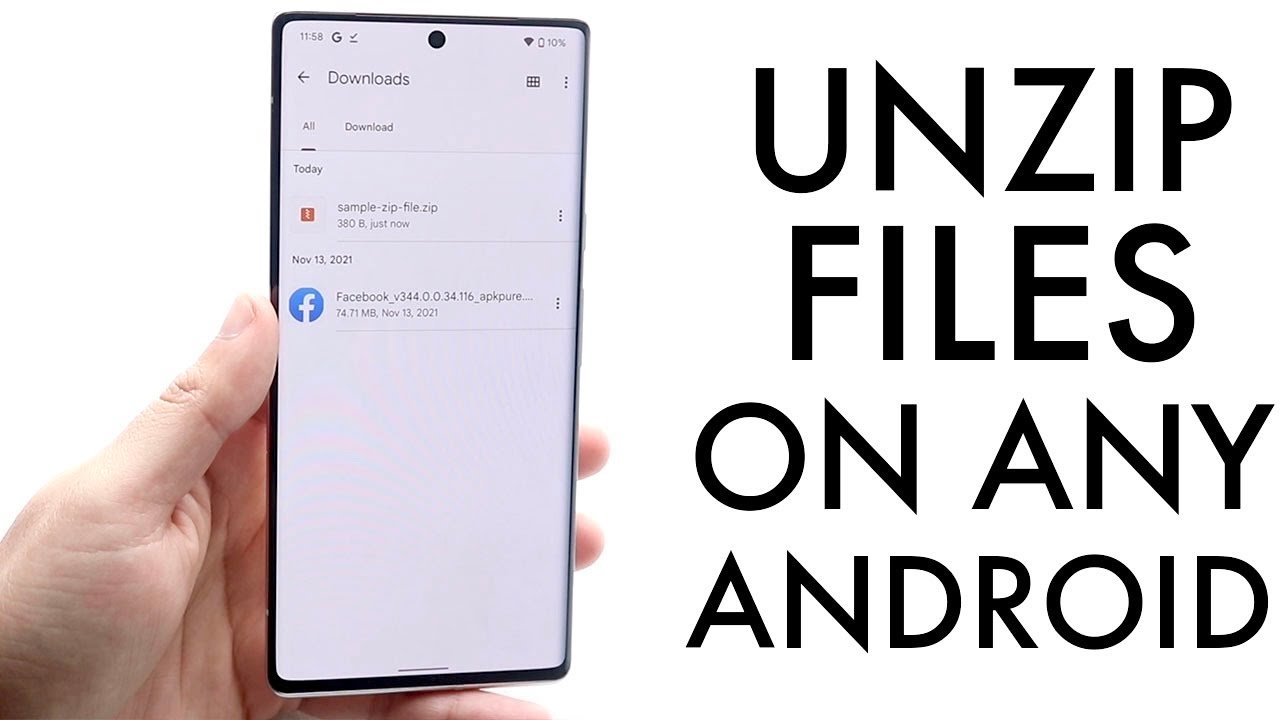
Most modern Android phones can extract ZIP files through their built-in file manager.
Steps:
- Open your phone's Files or File Manager app.
- Go to the Downloads folder.
- Find the ZIP file you downloaded.
- Tap the ZIP file.
- Select Extract or Extract here.
- Choose a destination folder if required.
- Open the extracted folder to access your files.
The exact buttons may differ between Samsung, Xiaomi, OnePlus, Vivo, Oppo, and other Android devices.
If Your Android Phone Cannot Open ZIP Files
You can use a reputable file-management app that supports ZIP archives. Make sure you download apps from trusted sources and avoid giving unnecessary permissions.
How to Extract ZIP Files on iPhone or iPad
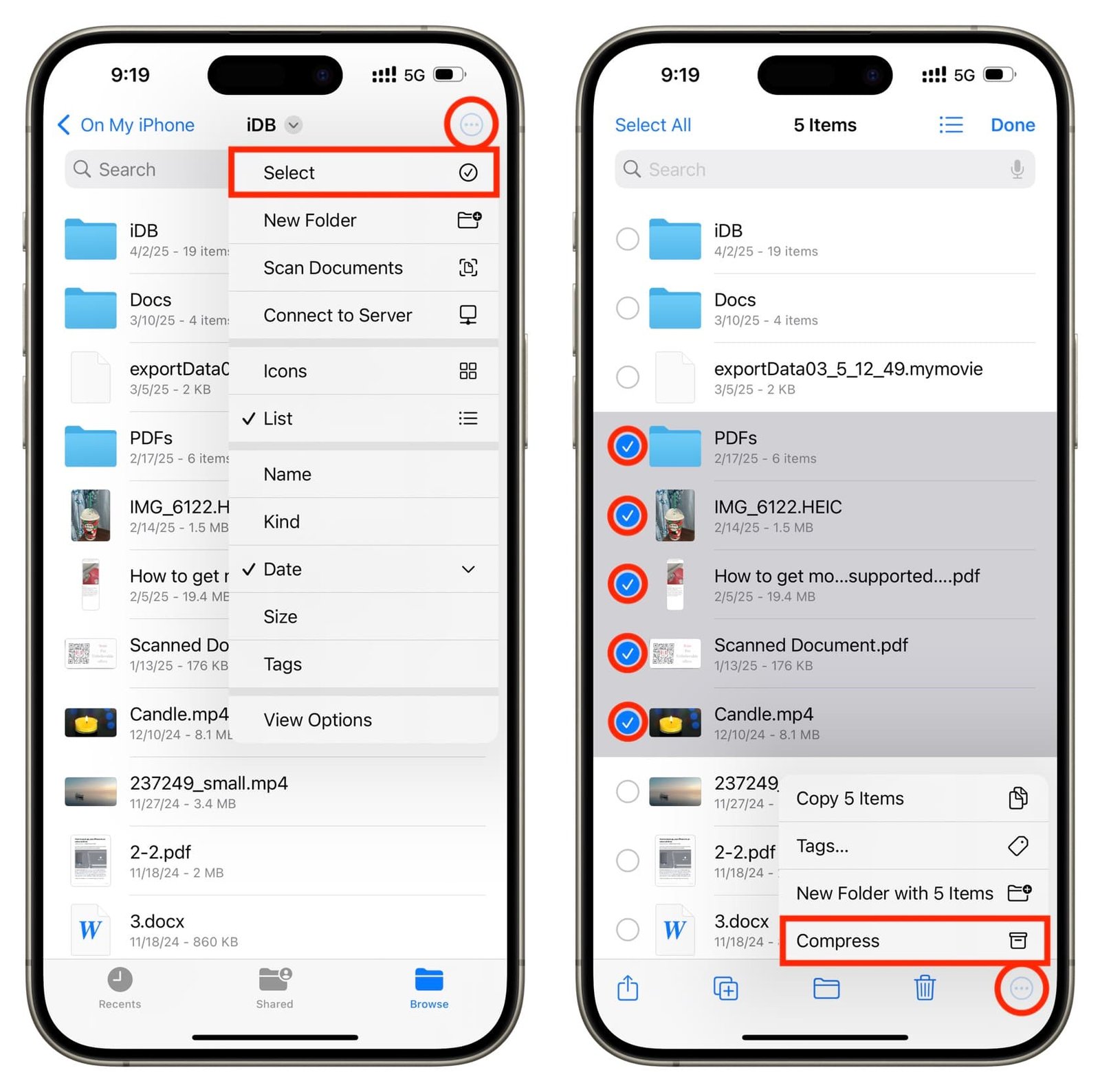
Apple devices also have built-in ZIP support through the Files app.
Steps:
- Open the Files app.
- Tap Browse.
- Go to Downloads or the location where the ZIP file is saved.
- Find the ZIP file.
- Tap the ZIP file once.
- iOS will automatically create a folder with the extracted files.
- Open the new folder to access its contents.
You don't normally need a separate ZIP extractor for standard ZIP files on iPhone or iPad.
How to Extract ZIP Files on Windows
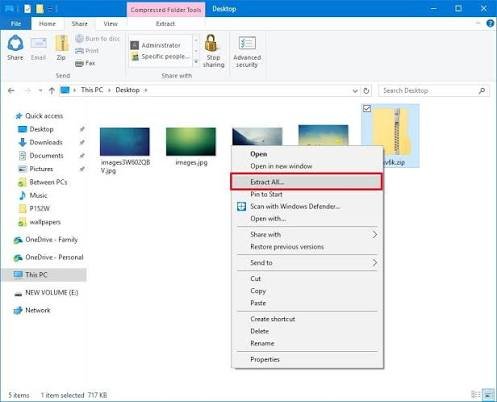
Windows 10 and Windows 11 include built-in ZIP extraction.
Steps:
- Open File Explorer.
- Navigate to the ZIP file.
- Right-click the ZIP file.
- Select Extract All.
- Choose where you want to save the extracted files.
- Click Extract.
Windows will create a folder containing the files from the ZIP archive.
Quick Method
You can also double-click a ZIP file to view its contents. However, if you want to properly extract the files, use Extract All.
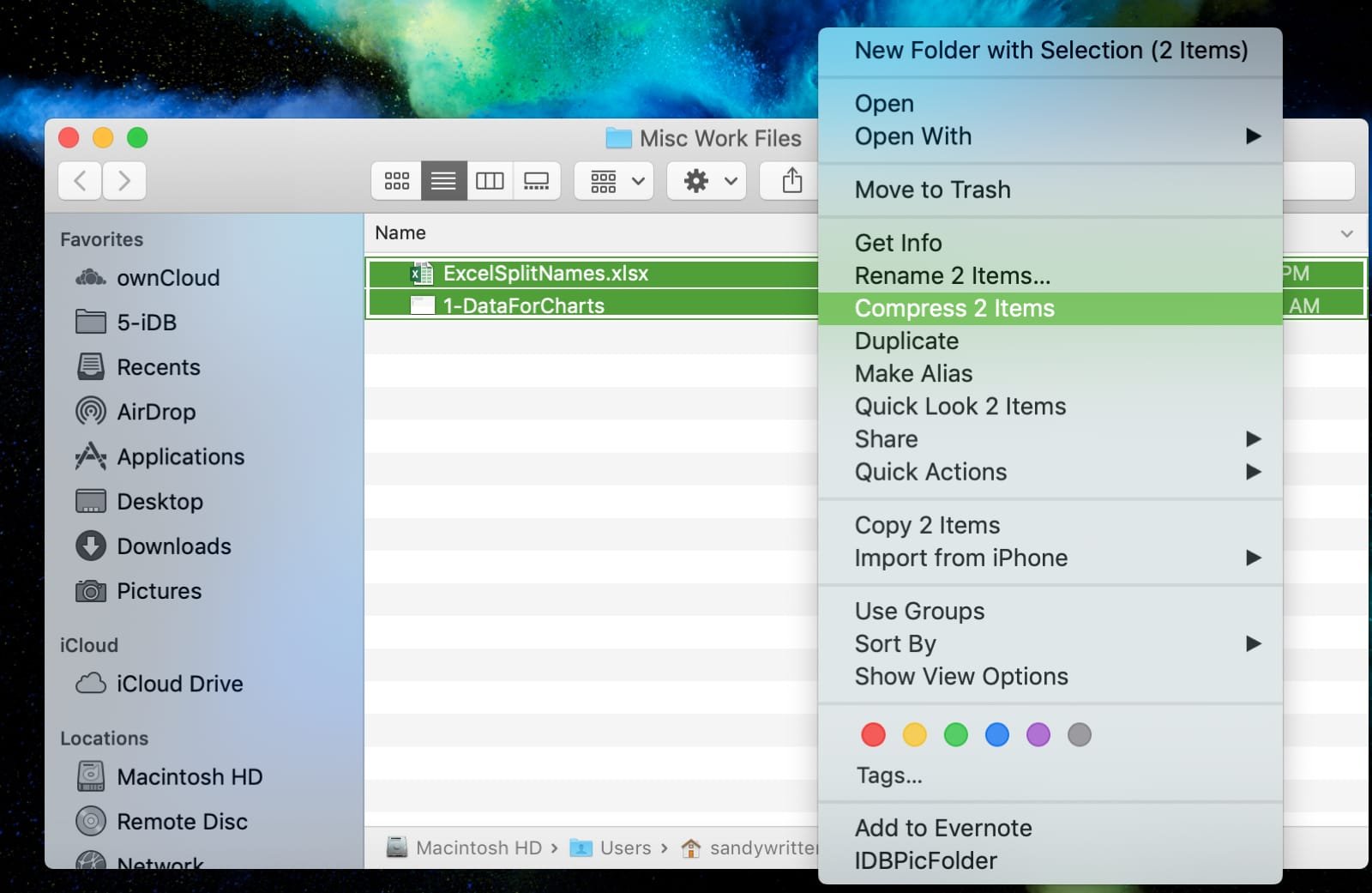
How to Extract ZIP Files on Mac
macOS has built-in ZIP support through Finder.
Steps:
- Open Finder.
- Locate your ZIP file.
- Double-click the ZIP file.
- macOS will automatically extract it.
- A new folder containing the extracted files will appear in the same location.
You can then open, move, or use the extracted files normally.
What If a ZIP File Won't Extract?
Sometimes a ZIP file may fail to open. Here are some common reasons:
1. The Download Is Incomplete
If the download was interrupted, the ZIP file may be corrupted. Try downloading it again.
2. Not Enough Storage
Make sure your device has enough free storage. Remember that you may need additional space for the extracted files.
3. Password-Protected ZIP
Some ZIP files require a password before their contents can be extracted. You'll need the correct password from the person or website that provided the file.
4. Unsupported Archive
Some files may use formats other than standard ZIP. In that case, you may need an archive utility that supports the specific format.
How to Extract ZIP Files for Lightroom Presets
If you've downloaded free Lightroom presets in ZIP format, extraction is usually the first step.
For example:
Don't try to import the ZIP file itself into Lightroom. First extract the archive and then use the appropriate preset files.
Is It Safe to Extract ZIP Files?
Extracting a ZIP file is generally safe, but the files inside the archive can still contain potentially harmful content.
For better security:
- Download ZIP files from trusted websites.
- Avoid suspicious email attachments.
- Don't open unknown executable files.
- Keep your operating system and security software updated.
- Scan suspicious downloads before opening them.
Frequently Asked Questions
Can I extract ZIP files without an app?
Yes. Android devices may have built-in file managers with ZIP support, while iPhone, Windows, and Mac provide built-in ZIP extraction features.
How do I extract a ZIP file on my phone?
On Android, open the ZIP file through your file manager and select Extract. On iPhone, open the ZIP file in the Files app and iOS will automatically extract it.
Where are extracted files saved?
Usually, extracted files are saved in the same location as the original ZIP file, although some file managers allow you to choose another location.
Can I extract ZIP files online?
Yes, but uploading private or sensitive files to an online extractor can create privacy risks. For personal documents, it's generally better to use your device's built-in extraction tools.
Final Thoughts
Extracting ZIP files is simple on most modern devices. Android and iPhone can handle many ZIP files directly from their file-management apps, while Windows and Mac also provide built-in extraction tools.
Whether you're downloading Lightroom presets, photos, templates, documents, or other resources, you can usually extract the ZIP archive in just a few clicks.

Comments (0)
Leave a Reply